 Codex Usage
Practical guide
How to check Codex usage limits and reset time
Codex usage is easiest to understand as a percentage of the current allowance: how much is used, how much remains, and when the active window resets. You can check the official account view or keep the same core information one click away in Chrome.
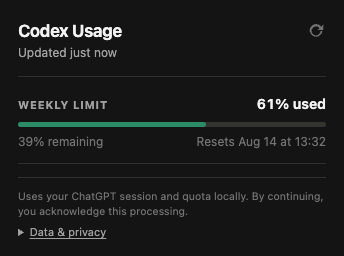
Check the official Codex usage view
- Sign in to ChatGPT with the account and workspace you use for Codex.
- Open the official Codex usage view from your account settings.
- Compare the active window, percentage used, percentage remaining, and reset time.
The official view is the source to use when validating another display. Account and plan behavior can change, so compare the same workspace at roughly the same time.
Keep Codex usage in the Chrome toolbar
- Install Codex Usage from the Chrome Web Store.
- Stay signed in to ChatGPT in the same Chrome profile.
- Pin the extension and open its toolbar popup.
- Use the timestamp to confirm when the visible value was last refreshed.
The extension shows only quota data returned for the active ChatGPT account. It does not calculate hidden token counts, change your plan, increase a limit, or accelerate a reset.
What the numbers mean
- Used
- The percentage already consumed in the returned usage window.
- Remaining
- The unused percentage available before the current limit is reached.
- Reset time
- The date or countdown supplied for the active window.
- Last updated
- The time of the last successful refresh, useful when a later request fails.
If the value looks wrong
- Refresh both the extension and the official view.
- Confirm that both use the same ChatGPT account and workspace.
- Check the last-updated time before relying on a saved value.
- If no usable quota window is returned, the current account may not be supported.
For sign-in and recovery help, use the support guide.